Using Drupal Media Library to Manage Images, Documents, and Videos
Introducing Drupal Media and Media Library
Editor’s note: This article was originally written for Drupal 8. The concepts remain relevant to modern Drupal, but some version-specific details have changed.
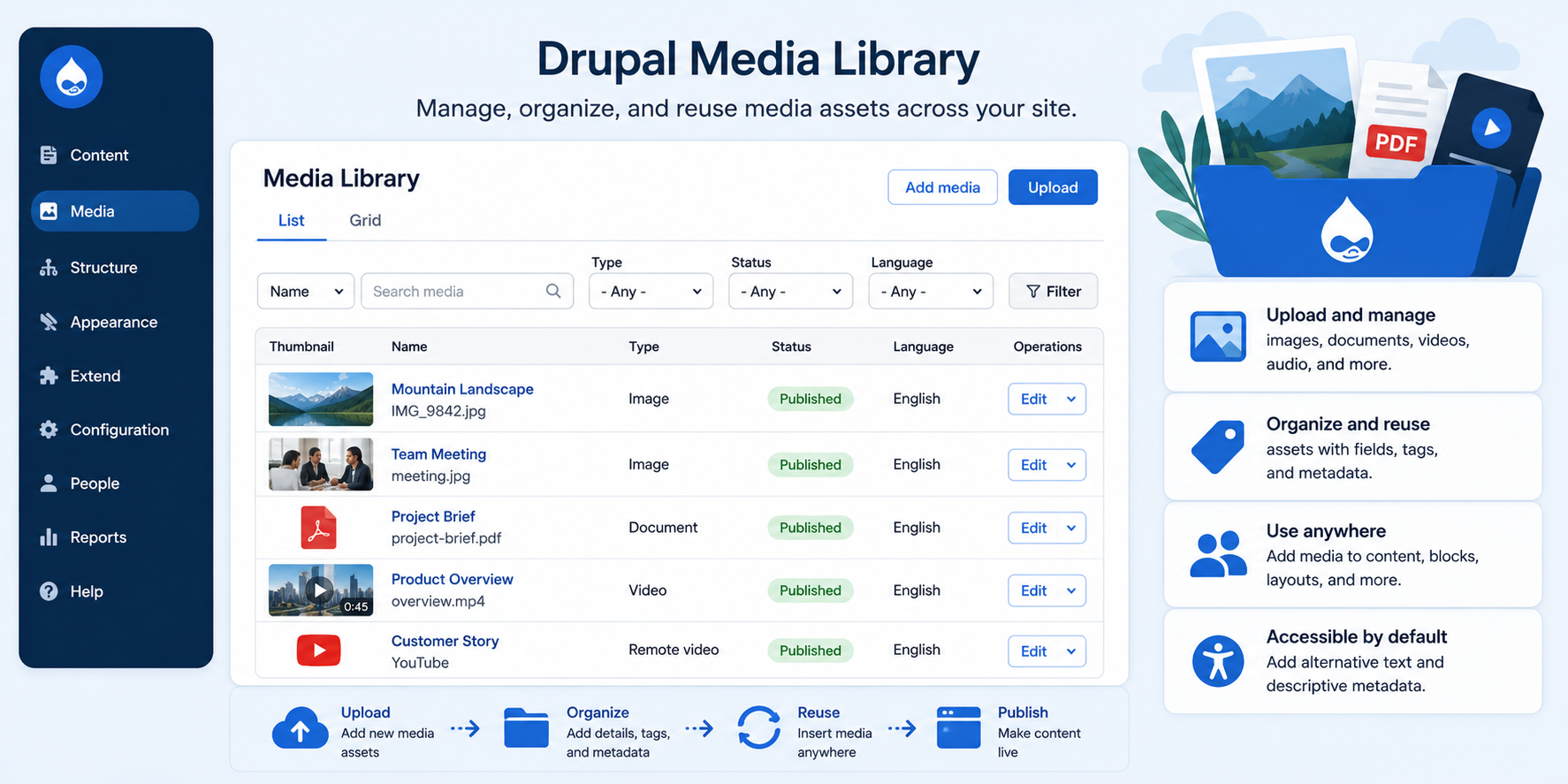
Drupal Media and Media Library provide a built-in system for uploading, organizing, reusing, and managing media assets. Editors can work with images, documents, audio, video, and remote media in a more consistent way across the site.
When combined with Workflows and Content Moderation, media assets can also fit into broader editorial review and publishing processes. This is useful for organizations that need to manage images, documents, or videos with the same level of governance as written content.
Drupal can support built-in media types such as images, audio, video, files, and remote video assets from services such as YouTube or Vimeo. Site builders can also define custom media types when a project needs more specific media workflows.
Because media items are entities, site builders can add fields to media types. For example, media items can include tags, captions, credit fields, licensing information, or other metadata to help organize and reuse assets.
Test-drive this Feature on this Demo Site
The Media Module Provides a Built-in Media Listing Page
Drupal’s administration screens are designed to behave consistently across related content management tasks. The Media listing page gives editors and site administrators a familiar place to find, filter, edit, and manage media assets.
What is a module? Drupal modules provide features and functionality that can be enabled and configured for a website. Drupal includes core modules that ship with Drupal, and contributed modules are added and maintained by the Drupal community.
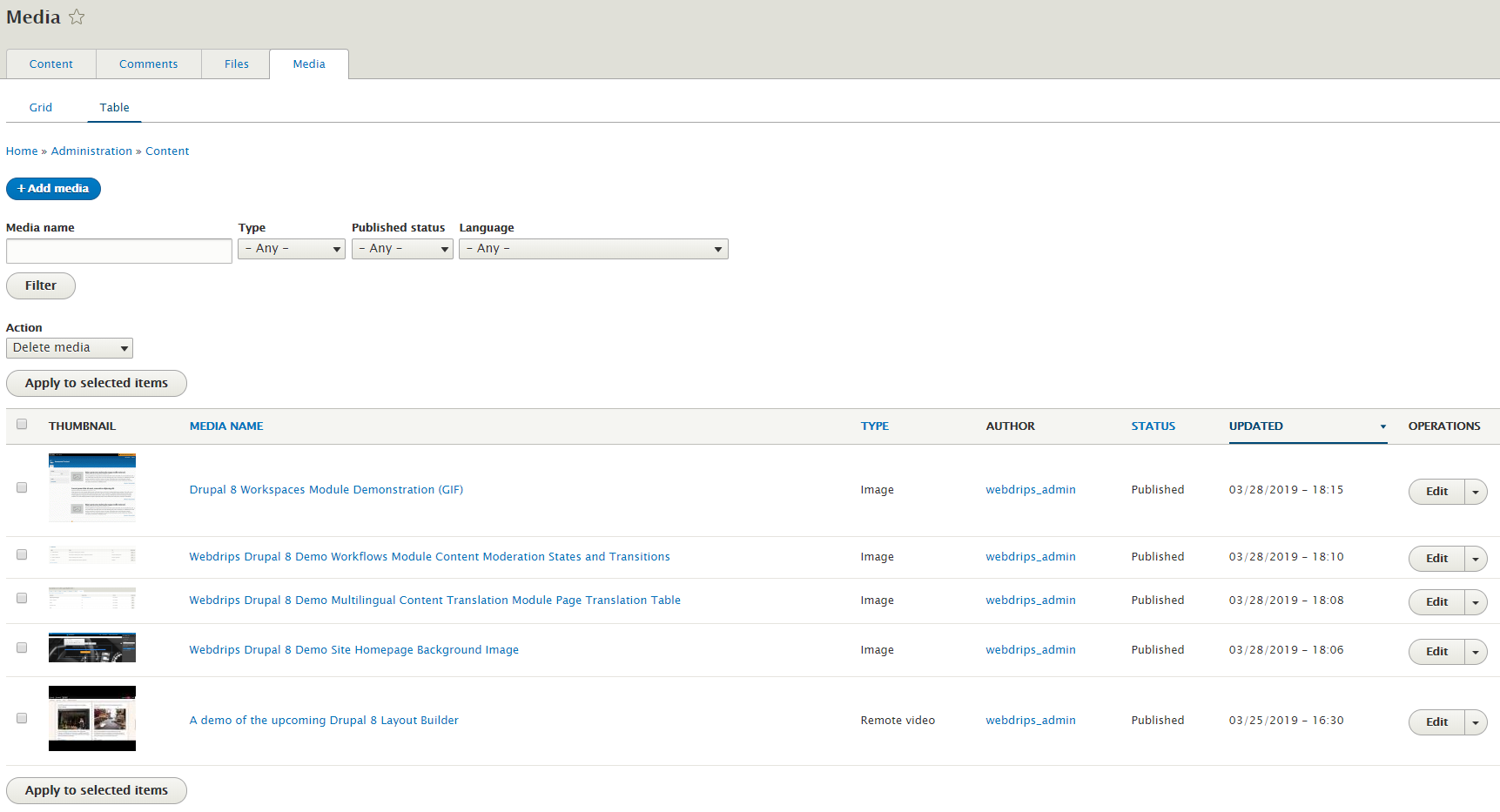
You can use the Media listing page to:
- Filter media by name, type, published status, and language on multilingual sites.
- Apply bulk actions to multiple media assets, such as publishing, unpublishing, or deleting selected items.
- Use table or grid views to review and edit individual media assets.
Adding and Editing Media Assets
Adding media assets for later reuse is straightforward. Editors can create media items, upload files, add descriptive names, and provide metadata such as alternative text for images.
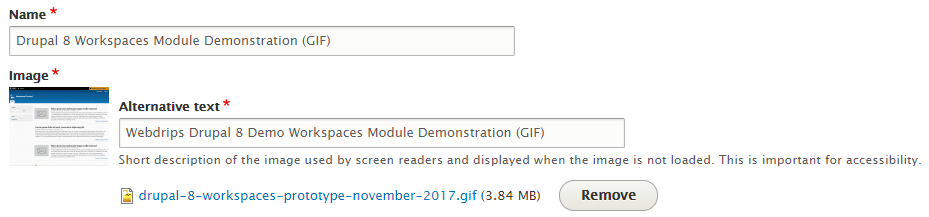
At a minimum, editors should add a descriptive name and upload or select the media file. For images, alternative text should be added when the image conveys meaningful information. This supports accessibility and helps ensure the media can be understood by people using assistive technology.
Once a media item exists, it can be reused across the site instead of uploaded repeatedly.
Adding Existing or New Media Assets to Content
When a media field is added to a content type, block type, or other supported entity, editors can use a media widget to add or update media.
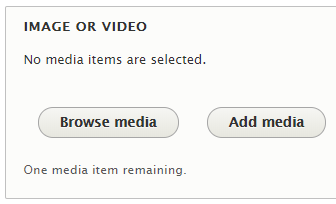
If the media asset has already been uploaded, editors can select Browse media to open the Media Library.
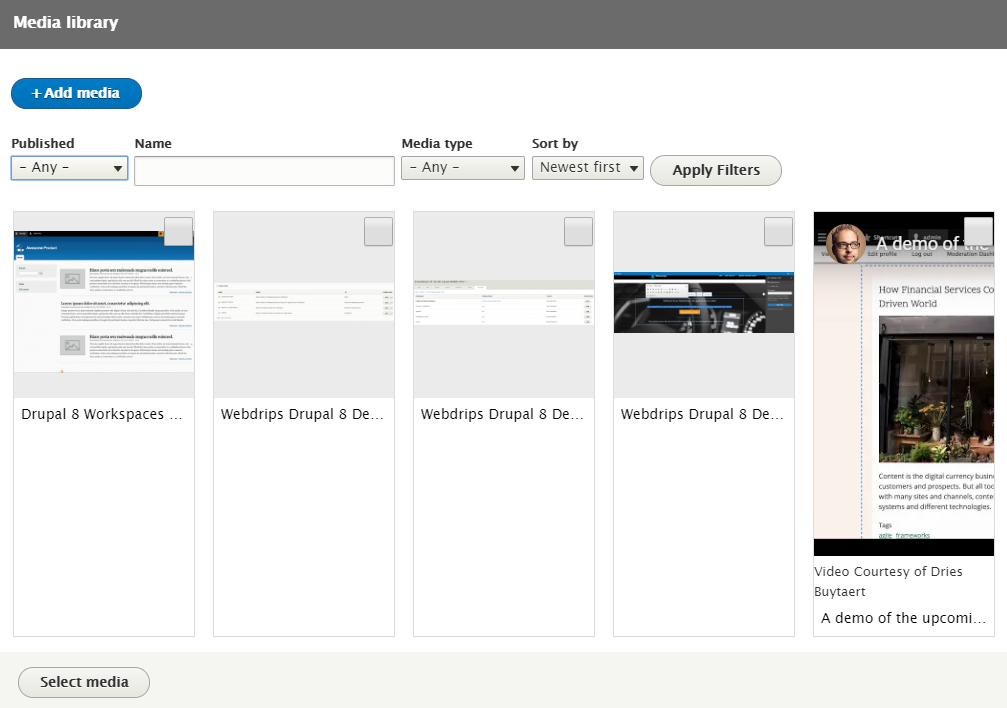
Editors can use filters to narrow the available media assets, then select the item they want to add.
If the desired media asset has not been uploaded yet, editors can add it directly from the Media Library workflow using the Add media option.
Drupal Media and Media Library can also work well with Layout Builder, allowing site builders to control where media can be placed within flexible page layouts.
Conclusion
Drupal Media and Media Library provide a practical way to manage reusable media assets across a website. Editors can upload, organize, search, select, and reuse images, documents, videos, audio files, and other media types through a consistent interface.
With thoughtful configuration, media items can also include useful metadata such as captions, credits, tags, licensing details, and alternative text. This helps teams manage content more consistently while supporting accessibility and long-term content governance.