Using Drupal Workflows and Content Moderation to Manage Editorial Review
Introducing Drupal Workflows and Content Moderation
Editor’s note: This article was originally written for Drupal 8. The concepts remain relevant to modern Drupal, but some version-specific details have changed.
The Drupal Workflows module allows you to apply a workflow to one or more entity types, including content types, block types, and media types. When used with the Content Moderation module, it can create simple to complex content approval workflows. In short, Workflows provides state machine logic for moving content from draft to published.
With Workflows, different roles may have different permissions to transition a given page, block, or media entity from one state to another. It provides simple to complex governance workflow implementation. These workflows are ideally suited for medium to large organizations that require multiple review steps before publishing content.
For example, a student at a university could create an event, the department could approve the event details, the facilities team could assign a room number, and a final approval could then be applied before the event is published and added to the events calendar.
Test-drive this Feature on this Demo Site
What is the Difference Between Drupal Workflows and Workspaces?
The core Drupal Workspaces module provides an Agile-like workflow for your content creation process that allows site editors to prepare and preview a complete set of related content before making it available to the public. For example, you might have a new event coming up that includes the event announcement, a preview webinar, and a form to request more information and tickets. With Workspaces, you can review and publish the entire set of related content together.
So what's the difference between Drupal Workflows and Workspaces? We answered that question in detail on our blog about the Workspaces module, but in a nutshell, here is the answer:
- Workflows can be applied to blocks, media, and content types, but they are applied to one given Drupal entity at a time.
- Workspaces provides a broader staging process for reviewing and publishing a group of related content changes together.
Drupal Workflows and Content Moderation Example
If you use the Request Editor Access button on the homepage, you can try this built-in functionality yourself.
Workflow States
On this Drupal demo site, we have configured the following states:
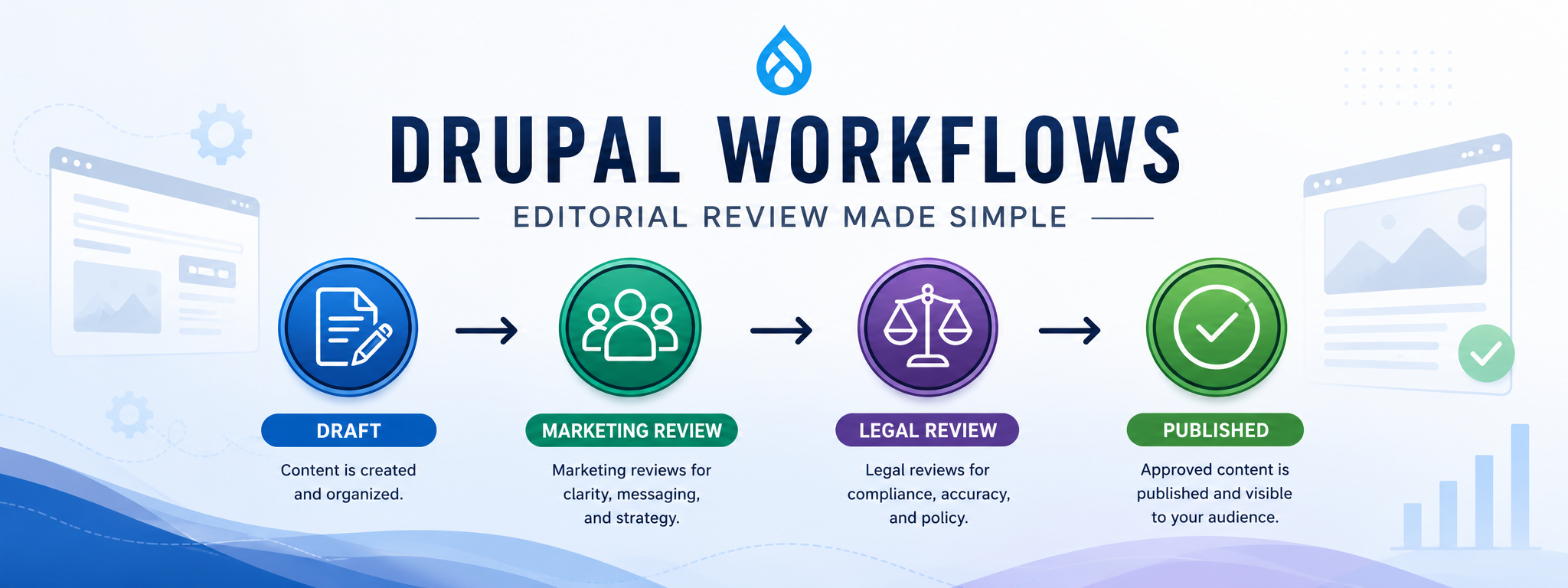
- Draft: the content was just added by a site editor, but it is not ready for anyone to review it.
- Ready for Marketing Review: the editor writing this page believes it is ready for the marketing department to review it.
- Ready for Legal Review: the marketing department has reviewed the page, and it is now ready for the legal department's review.
- Published: the page has been approved by the legal department and is now visible to the public.
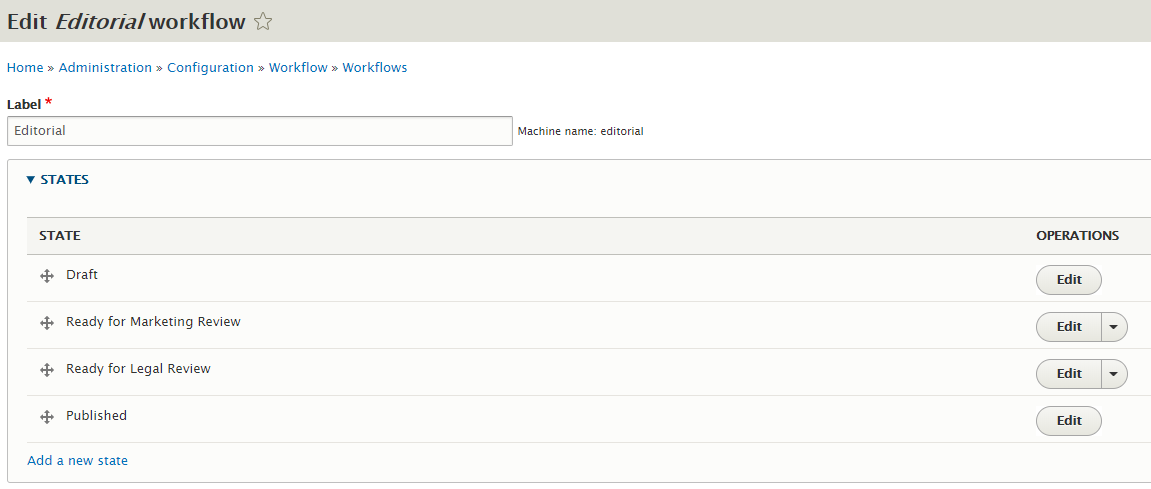
When we edit a state, we are shown the allowed transitions.
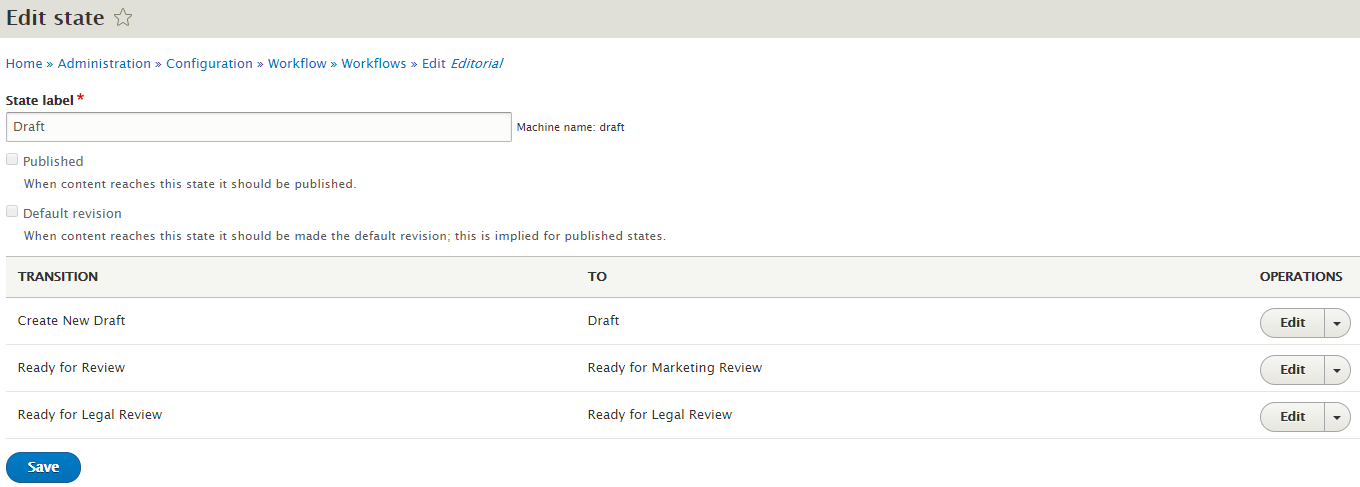
We find this screen most useful as a summary screen, and we found it a bit easier to edit the allowed transitions from the transitions table, which we review next.
Workflow Transitions
We use the workflow transitions table to set up the following transitions:
- Draft can stay at Draft, or transition to Ready for Marketing Review or Published.
- Ready for Marketing Review can stay put, or transition to Draft, Ready for Legal Review, or Published.
- Ready for Legal Review can transition to Ready for Marketing Review or Published.
- Published can transition to Ready for Marketing Review or Ready for Legal Review.
In case you're wondering why transitions are allowed to go "back" to an earlier state, it's basically telling the last person their last attempt needed too many updates, and so they'll want to review it again, make additional changes, and pass it back to be finalized.
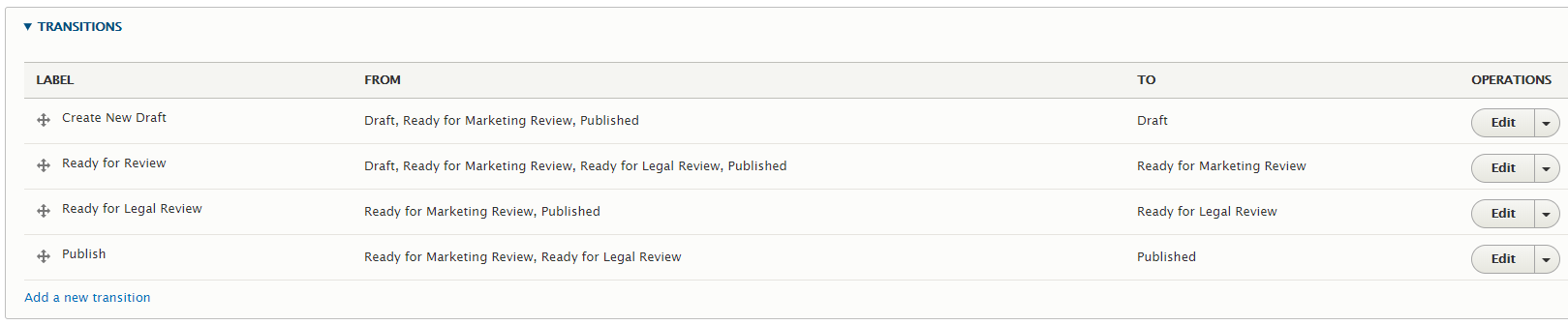
We edit a transition to set up the allowed "from" transitions. The "to" value is fixed to the transition state being edited.
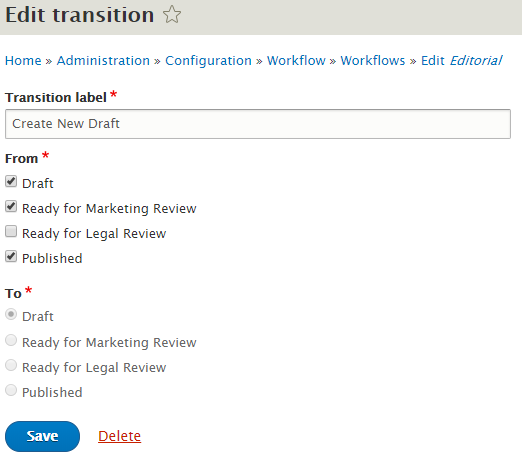
As you can see here, we allow drafts to stay in the Draft state, and both Ready for Marketing Review and Published can be moved back to Draft. This means the legal department can't set a page back to the draft state, likely because they would send it back to marketing or set the page to published.
Applying a Workflow to Entity Types
Use the "This Workflow Applies To" table to select which block types, media types, and content types the workflow being edited applies to.
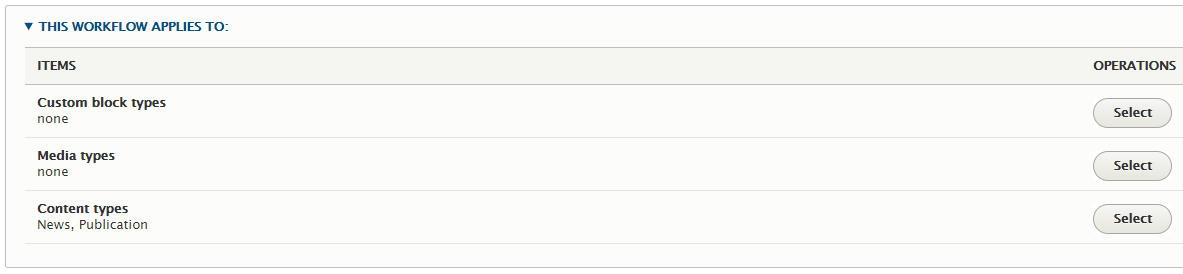
In our example, the workflows on this demo site apply to the news and publication content types.
Default Workflow State
Before saving our workflow and putting it to use, you'll want to set the default state.

Workflow Permissions for State Transitions
You can set which role is allowed to make each transition using the permissions table under People > Permissions.
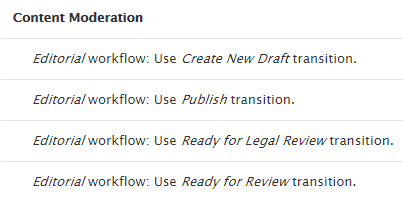
Use these permissions to allow only certain roles to make a transition to each state you created. For example, it probably doesn't make sense for an editor role to use the publish transition if each page must be reviewed by marketing and/or legal prior to being published.
There's no limit to the number of workflows and permission combinations allowed.
This is where roles and permissions become especially important. A workflow is most useful when each role has the right level of access: editors can draft content, reviewers can approve changes, and publishers can make final decisions. Keeping those responsibilities separate helps reduce mistakes and supports stronger governance.
Putting the Workflow to Use on Content
There are two methods to make use of a workflow:
1. Set the Workflow State while Editing an Entity
While an entity is being edited, you can decide to go ahead and set the workflow state.
2. Set the Workflow State While Viewing the Entity
To save a couple clicks, you can edit the workflow moderation state while viewing the entity.
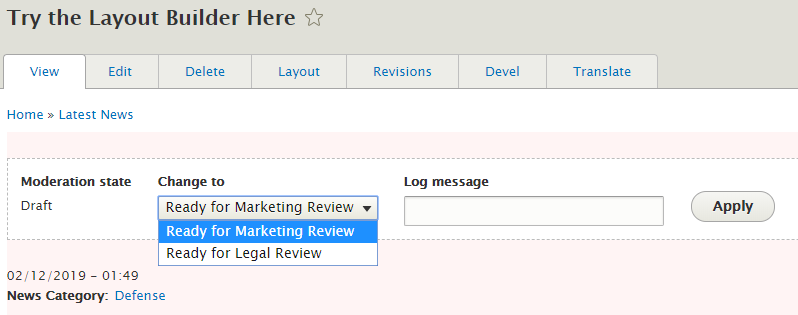
Of course, it's always recommended to add a log message to let your coworkers know what changed, and possibly pass along further instructions.
Conclusion
Drupal Workflows and Content Moderation provide a flexible way to manage editorial review, approval, and publishing. Teams can define custom states, control which roles can move content between states, and support review processes for content types that require governance before publication.
You can configure permissions to allow moderation state transitions per role. There is no limit to the number of workflows and role/permission combinations.